The short answer
To give someone access in Meta Business Suite, open Settings. For an agency with its own Business Suite, go to Users → Partners → Add → “Give a partner access to your assets” and enter their Business ID. For an employee, go to Users → People → “Invite people”, enter their work email and choose which assets they can manage.
Before you start
By the end of this SOP
They can manage your Page or ads, but you stay the owner.
- Time
- 10 minutes
- Who does this
- A business owner with admin access.
About this SOP: why it matters, where and when
Why it matters: If access isn’t managed properly, you quickly lose track of who can touch what.
Where: Inside Meta Business Suite → Settings.
When: Every time you start working with someone new on your Meta assets.
Stage 1
Make sure Business Suite owns your assets
Skip this stage if your Page and ad account are already in Business Suite. Only do this if you are the owner.
- 1
Open Settings (gear icon) → Accounts → Pages → “+ Add” → “Add an existing Facebook Page”.
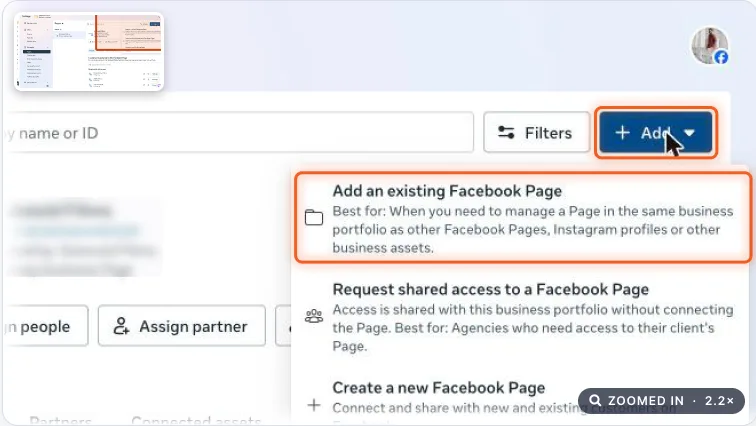
Pages settings with the Add menu open and Add an existing Facebook Page highlighted. Real screenshot, Oct 2026. - 2
Search for your Page (and its Instagram account), confirm who has full access, accept the terms and click “Add Page and Instagram”.
- 3
For ad accounts: Settings → Accounts → Ad accounts → “+ Add” → “Add an existing ad account”.
- Find your Ad account ID in Ads Manager, in the account dropdown at the top left.
- Paste the ID, accept the terms and click “Add ad account”.
Watch out
Once an ad account is claimed, it cannot be removed from the business portfolio.
Stage 2
Give access to an agency or contractor
Use this when your freelancer or agency has their own Business Suite. Ask them for their Business ID first.
- 1
Open Settings → Users → Partners and click “Add”.
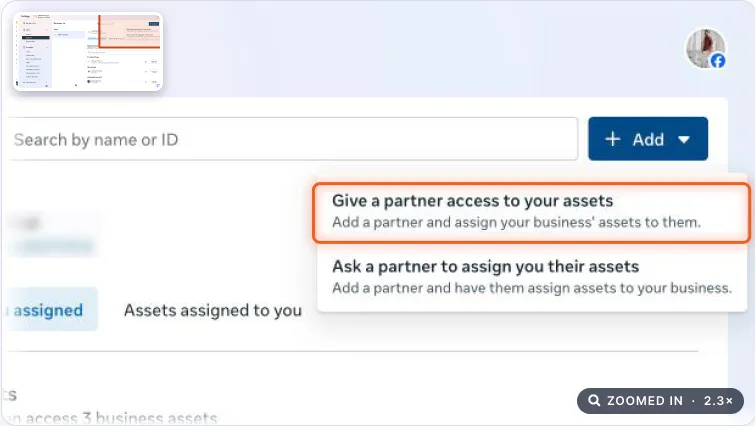
Partners settings with Give a partner access to your assets highlighted. Real screenshot, Oct 2026. - 2
Choose “Give a partner access to your assets”, enter the partner’s Business ID and click Next.
- 3
Pick the assets (ad account, Page, dataset/pixel) and choose partial access first, such as “Manage campaigns” and “View performance”. Click Save.
- Older screens may ask you to do this separately: Settings → Accounts → Ad accounts → “Assign partner”.
Watch out
“Full control” lets the partner add or remove people, including you. Give it only to an agency you fully trust, and never let the agency become the only admin.
- 4
Every 3 months, open Settings → Users → Partners and People, and remove anyone who no longer works on the account.
Tip
Giving partner access never transfers ownership. You can remove it any time.
Stage 3
Give access to a person (employee)
Use this for employees, or freelancers who don’t use Business Suite.
- 1
Open Settings → Users → People and click “Invite people”.
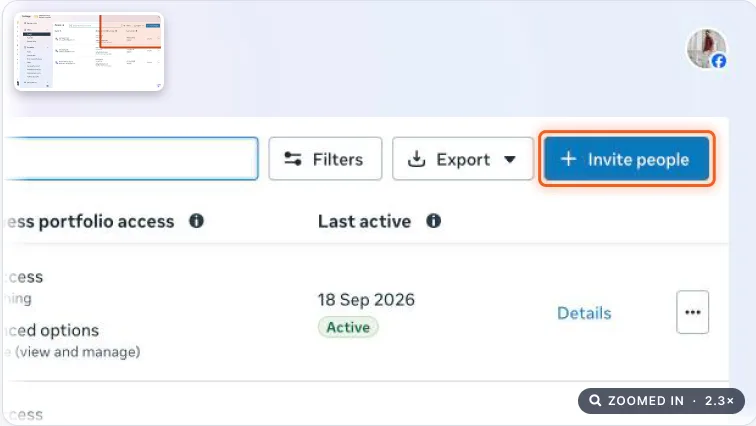
People settings with the Invite people button highlighted. Real screenshot, Oct 2026. - 2
Enter their work email. Turn on “Temporary access” if they only need it for a while. Click Next.
- 3
Choose partial or full control. For billing access, open “View advanced options”. Click Next.
- 4
Pick the assets (Pages, ad accounts) and their permissions, review, and click “Send invitation”.
Stage 4
What your employee does next
Share these steps with the person you invited.
- 1
Open the invitation email from Meta and click “Get started”.
- 2
Add your name, click Continue, and log in with your personal Facebook account. Done!
Agency playbook
Doing this for a paying client
What a senior checks before calling the job done. Numbers are starting rules; compare them with the account’s own history.
What good looks like
- Every person has their own login. Zero shared passwords, zero shared “agency” Facebook profiles, zero OTPs (one-time passwords) sent on WhatsApp.
- Your agency gets access as a Partner, then assigns assets to its own staff inside the agency portfolio. Staff aren’t invited one by one as client employees.
- Least access by default: manage campaigns on the ad account, content on the Page, dataset access for tracking. Billing and full control stay with the client.
- Access is proven, not assumed: you can open the account in Ads Manager, see the dataset in Events Manager, and pick Page and Instagram as ad identity.
- Freelancers get temporary access with an end date that matches their contract.
Mistakes we see on real accounts
- Asking for full control “to make it easier”. In a dispute, or if a staff profile is hacked, the client’s own admins can be removed.
- Forgetting to share the dataset (pixel). Campaigns can’t optimise for leads or sales, so juniors run Traffic campaigns that don’t convert.
- Instagram not shared. Ads run without the Instagram identity and comments on Instagram ads go unanswered.
- Old staff and past agencies still have access months later. One hacked old profile can run unauthorised ads on the client’s money.
- Taking billing access you don’t need. Any payment failure or overspend becomes your agency’s problem.
Agency checklist before you call it done
- You requested access through Business Suite. You never asked for the client’s password or login code.
- The client’s portfolio still has two of their own admins after you are added.
- Inside your agency portfolio, the client’s assets are assigned only to team members working on this account.
- Test: start a draft campaign, choose the Page, Instagram and dataset, then discard it. Save the screenshot in the client folder.
- Client access sheet updated: person or partner, asset, permission, date given, next review date.
- Change-log entry: “[Date] Partner access received – ad account, Page, IG, dataset – [Your name]”.
- Calendar reminder set for the 3-month access review. Leavers are removed from all client assets the same day.
Handover message to the client
Hi [Client name], thank you. We now have Partner access to your ad account, Facebook Page, Instagram and dataset. You stay the owner and full admin. Our team on your account: [Name 1], [Name 2]. You can remove us anytime in Settings → Users → Partners. We’ll review access with you every 3 months.
Senior tip
Connect reporting dashboards and CRM-to-Conversions API integrations through a System User in your agency portfolio, not a staff profile. Tokens tied to a person break the day that person leaves or loses access.
Practice & check
Now do it for real
Reading is not doing. Open your own account and complete this task before you move on.
Practice task (5 min)
In Business Suite, open Settings → Users → People and find the “Invite people” button. Don’t send an invite.
Prove it
Two questions. Get both right and this SOP is done.
Common questions
What is the difference between Partners and People in Meta Business Suite?
Partners are other businesses (agencies) with their own Business Suite; you give them access with their Business ID. People are individuals you invite by email, such as employees.
Can I give temporary access in Meta Business Suite?
Yes. When inviting a person, turn on “Temporary access” and choose how long it lasts.
Can I remove an ad account after claiming it?
No. Once claimed, an ad account cannot be removed from the business portfolio, so only claim accounts you own.
Done. That’s a real skill, not a certificate.
Next: SOP 069 — Structure Your Meta Ads Account →
Want to do this on real client budgets, with a mentor checking your work? That’s Level 2 at Unlearn. See the Digital Marketing track