The short answer
To manage follow-up in Zoho CRM, create an assignment rule that gives every new lead an owner, a workflow rule that creates a “Call within 5 minutes” task and alerts that owner, and a follow-up task sequence for leads that don’t answer (day 1, 2, 4, 7). Log every call outcome, and review untouched leads and response time every morning.
Before you start
By the end of this SOP
Every new lead gets an owner and a call task within minutes, with automatic reminders until it is qualified or closed.
- Time
- 45–60 minutes
- You’ll need
- Zoho CRM with administrator access and the lead pipeline set up (SOP 330).
- Who does this
- The sales manager or business owner.
About this SOP: why it matters, where and when
Why it matters: Fast, consistent follow-up often lifts lead-to-sale rate more than any change to the ads.
Where: Zoho CRM → Setup → Automation.
When: Right after the lead pipeline is set up.
Stage 1
Assign every lead
- 1
Open Setup → Automation → Assignment → Create Assignment Rule, and choose the Leads module.
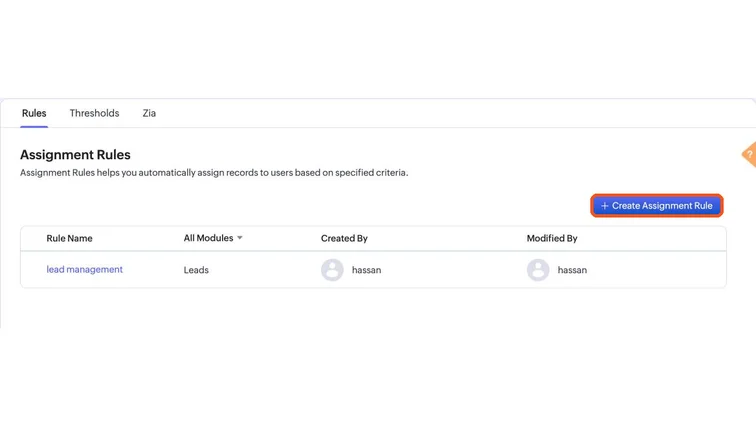
Zoho CRM Assignment Rules with the Create Assignment Rule button. Real screenshot, Oct 2026. - 2
Choose round robin among the counsellors or sales team, or rules by source or course (for example, Meta WhatsApp ad leads to the WhatsApp team).
- 3
Apply the rule to leads from Meta, webforms and imports.
Stage 2
Create the instant call task
- 1
Open Setup → Automation → Workflow Rules → Create Rule for Leads, executed on record creation.
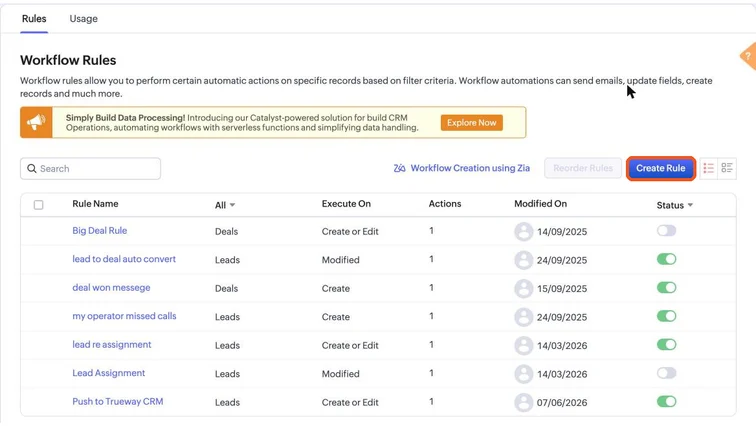
Zoho CRM Workflow Rules list with the Create Rule button. Real screenshot, Oct 2026. - 2
Action: create a task “Call new lead” due today, assigned to the lead owner, with high priority.
- 3
Action: send an email or in-app notification to the owner, including the lead’s name, phone and source.
- 4
Agree the target: call within 5 minutes during working hours, and before 10 am for leads that came in overnight.
Tip
Leads called within 5 minutes answer far more often than leads called after an hour.
Stage 3
Follow up until there’s an answer
- 1
Create a field “Call attempts” and a Lead Status value “Not reachable”.
- 2
Use a workflow or the team’s routine: if a call is unanswered, send a WhatsApp message and create the next task. Try on day 1, 2, 4 and 7.
- 3
After 4–5 unanswered attempts, set status to Not reachable so the pipeline stays clean.
Stage 4
Review every morning
- 1
Each morning, open the “New, no activity” view and the overdue tasks list. Zero untouched leads is the goal.
- 2
Weekly, check response time by owner and lead-to-qualified rate by source.
- 3
Share the weekly numbers with whoever runs the ads, so campaigns that bring unreachable leads get fixed.
Practice & check
Now do it for real
Reading is not doing. Open your own account and complete this task before you move on.
Practice task (5 min)
In a Zoho CRM trial, set up a round-robin assignment rule and a workflow that creates a “Call new lead” task on lead creation, then test it with a dummy lead.
Prove it
Two questions. Get both right and this SOP is done.
Common questions
Can Zoho CRM assign leads automatically?
Yes. Assignment rules can assign leads by round robin or by criteria such as source, city or course.
How do I track lead response time in Zoho CRM?
Compare lead created time with the first completed call or activity. Many teams add a “First contacted” date field filled by a workflow, and report on the gap.
Should follow-up be by call or WhatsApp?
Both. Call first, and send a short WhatsApp message if there’s no answer, so the lead can reply when it suits them.
Done. That’s a real skill, not a certificate.
Next: SOP 332 — Send Zoho CRM Qualified Leads and Sales Back to Google Ads →
Want to do this on real client budgets, with a mentor checking your work? That’s Level 2 at Unlearn. See the Digital Marketing track