The short answer
To send CRM conversions to Google Ads, capture the GCLID from every Google Ads click into a hidden field on your website form, store it on the Zoho lead, then connect Zoho CRM’s Google Ads integration and choose which stages to send (for example Qualified and Won). Google Ads creates conversion actions for them. Make the stage that best reflects real value Primary, set the others to Secondary, and check the status regularly.
Before you start
By the end of this SOP
Qualified leads and won deals from Zoho CRM appear in Google Ads as conversions, with the right one used for bidding.
- Time
- 60–90 minutes
- You’ll need
- Zoho CRM admin access, Google Ads admin access, auto-tagging on (SOP 014), and website forms that pass hidden fields (SOP 330).
- Who does this
- The person managing tracking, with the CRM administrator.
About this SOP: why it matters, where and when
Why it matters: When Smart Bidding learns from qualified leads or sales instead of every form fill, lead quality usually improves and cost per customer drops.
Where: Website forms, Zoho CRM → Setup → Marketplace → Google Ads, and Google Ads → Goals → Conversions.
When: Once you get at least 30 qualified leads or sales a month from Google Ads.
Stage 1
Capture the GCLID
- 1
Check auto-tagging is on in Google Ads (Admin → Account settings → Auto-tagging).
- 2
On your website form, add a hidden field filled with the gclid value from the page URL or a first-party cookie (most form plugins and the Zoho webform script can do this).
- 3
Map the hidden field to the GCLID field on Zoho leads.
- 4
Test it: open your page with ?gclid=TEST added to the URL, submit the form, and check the value appears on the Zoho lead. Don’t click your own ads to test.
Stage 2
Connect Zoho CRM to Google Ads
- 1
In Zoho CRM, open Setup → Marketplace → Google → Google Ads, and sign in with a Google account that has admin access to the ad account.
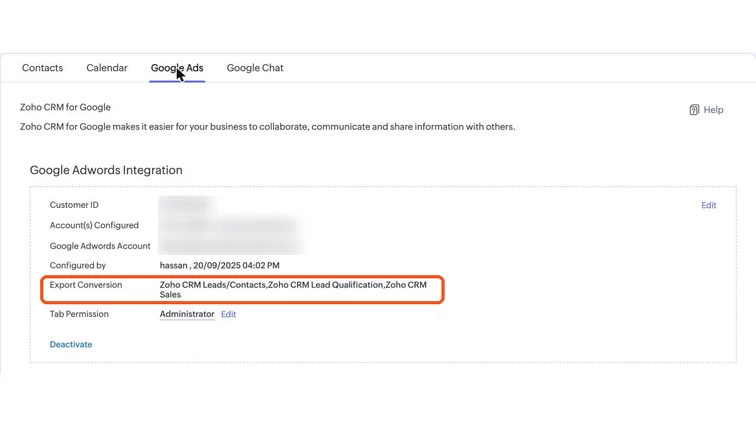
Zoho CRM Google Ads integration showing the conversions it exports: leads, lead qualification and sales. Real screenshot, Oct 2026. - 2
Choose the Google Ads account and the stages or statuses to send as conversions, for example Lead Status = Qualified and Deal Stage = Won.
- 3
Include deal value for Won if you want value-based bidding later.
Stage 3
Set the conversions up correctly in Google Ads
- 1
In Google Ads, open Goals → Conversions → Summary. The CRM stages appear as conversion actions (often named after Zoho CRM).
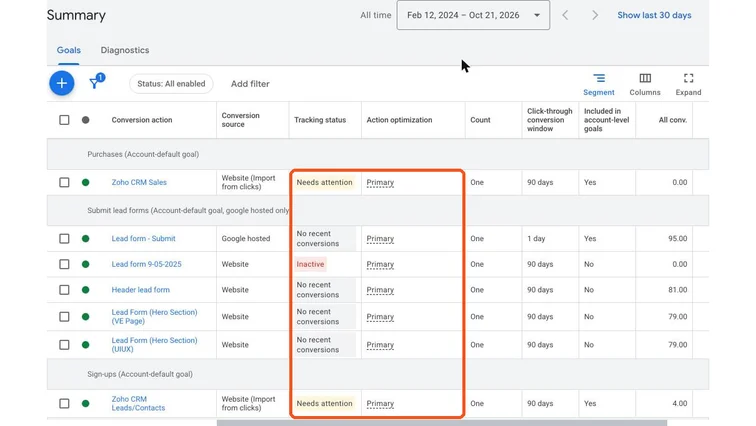
Google Ads conversion actions, including Zoho CRM imports marked Needs attention. Real screenshot, Oct 2026. - 2
Decide which action Smart Bidding should optimise for:
- Enough volume (30+ a month): make Qualified lead Primary.
- Low volume: keep the website lead Primary and the CRM stages Secondary for now.
- Never leave the website lead and the CRM lead both Primary for the same goal; that double-counts.
- 3
Set the click-through conversion window to 90 days for long sales cycles.
Stage 4
Monitor and fix
- 1
Check the conversion status weekly. “Needs attention” or “No recent conversions” usually means missing GCLIDs, wrong stage mapping, or conversions older than the 90-day window.
- 2
In Zoho, look at recent Google Ads leads: if the GCLID field is empty, the form capture is broken.
- 3
Compare the number of Qualified leads in Zoho with the conversions in Google Ads every month.
Practice & check
Now do it for real
Reading is not doing. Open your own account and complete this task before you move on.
Practice task (5 min)
Add a hidden GCLID field to a test form, submit it with ?gclid=TEST in the URL, and show the value saved on the Zoho lead.
Prove it
Two questions. Get both right and this SOP is done.
Common questions
Why does my Zoho CRM conversion say Needs attention in Google Ads?
Usually no conversions with valid GCLIDs have arrived recently. Check the GCLID field is filled on new leads, the stage mapping, and that conversions are within the 90-day window.
Can I send Zoho CRM conversions to Meta too?
Yes, through the Conversions API with a CRM integration or a connector, so Meta can optimise for qualified leads (Conversion leads).
Do I need enhanced conversions for leads?
It helps. Enhanced conversions for leads use hashed email or phone as a backup when the GCLID is missing. Set it up in Google Ads alongside the CRM import.
Done. That’s a real skill, not a certificate.
Want to do this on real client budgets, with a mentor checking your work? That’s Level 2 at Unlearn. See the Digital Marketing track