The short answer
To create a Google Ads account, go to ads.google.com and click “Start now”. If you already have an account, choose “New Google Ads Account”. Enter your business name and website, finish the setup steps, and choose your billing country, time zone and currency carefully, because they can’t be changed later.
Before you start
By the end of this SOP
A Google Ads account with access to your dashboard, and auto-tagging switched on.
- Time
- 10–20 minutes
- You’ll need
- A Google account and your business website.
- Who does this
- The person responsible for paid advertising.
About this SOP: why it matters, where and when
Why it matters: Google Ads reaches people at the exact moment they search, across Search, YouTube and the Display Network.
Where: In Google Ads (ads.google.com).
When: When you need a new Google Ads account.
Stage 1
Create a Google Ads account
Follow the real Google Ads screens below.
- 1
Go to ads.google.com and click the blue “Start now” button.
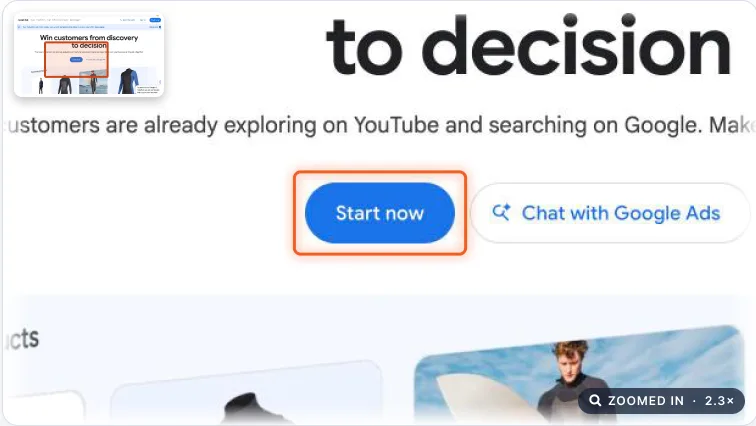
Google Ads homepage with the blue Start now button highlighted. Real screenshot, Oct 2026. - 2
Already have a Google Ads account? On “Select a Google Ads account”, click “New Google Ads Account”.
- No account yet? Sign in with your Google account and you will go straight to the setup.
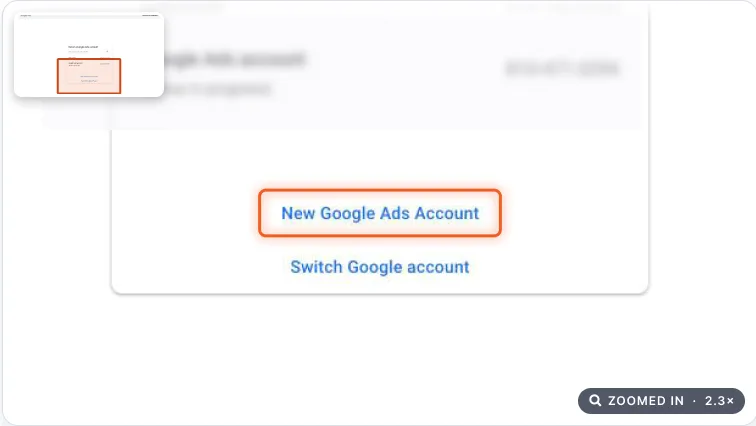
Select a Google Ads account screen with New Google Ads Account highlighted. Real screenshot, Oct 2026. - 3
Google opens a short guided setup that builds a campaign for you. Agencies skip it: look for “Switch to Expert Mode” (often at the bottom), then choose “Create an account without a campaign”.
Watch out
The guided flow can create a Smart or Performance Max campaign that starts spending as soon as billing is added. Switching to Expert Mode can’t be undone, which is fine: it is what professionals use.
- 4
Setting up for a client? Create the account from your Google Ads manager account (MCC) under the client’s own business email, so the client owns it and you manage it.
- 5
On “Tell us about your business”, enter your business name and website, then click Next.
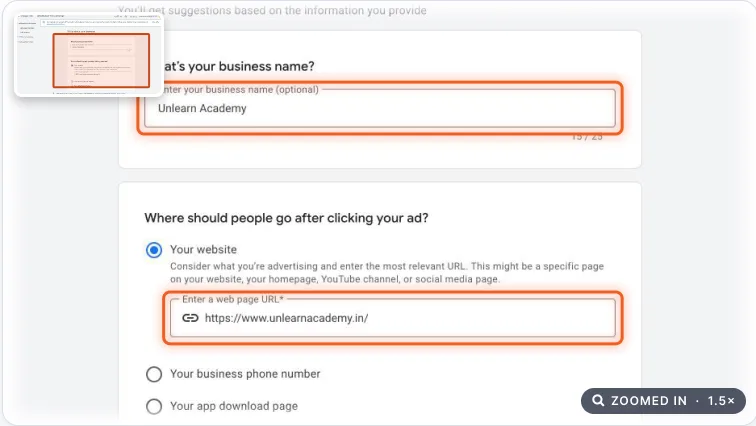
Tell us about your business form with business name and website fields highlighted. Real screenshot, Oct 2026. - 6
Confirm billing country (India), time zone ((GMT+05:30) India Standard Time) and currency (INR), then finish the remaining items one at a time: Link accounts, then Enter payment details.
Watch out
Billing country, time zone and currency can’t be changed later on a normal account.
- 7
Payment details: choose Business (not Individual) for a company, and enter the legal name, address, PAN and GSTIN exactly as on the documents.
- Google will ask for advertiser verification later. Mismatched names are the most common reason it fails.
- The payments profile should belong to the client, not your agency card.
- 8
Avoid the common suspension triggers:
- Don’t use a VPN while creating or managing the account.
- Don’t create several accounts for the same business.
- Never reuse a card or payments profile from a suspended account.
- Make sure the website, email domain and business name match.
- 9
Done! You land on your account dashboard.
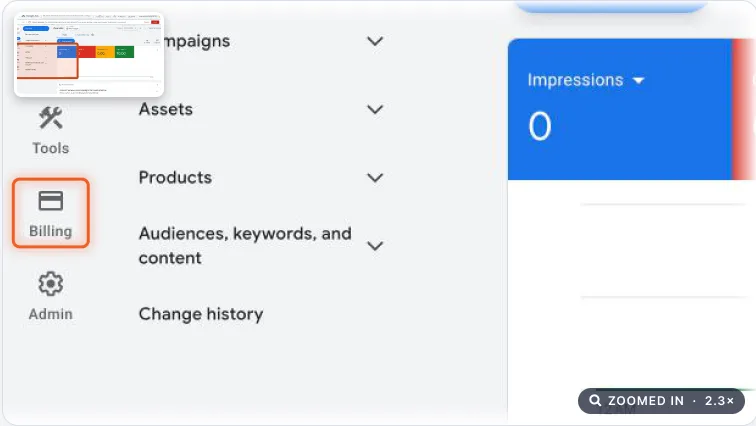
Google Ads overview dashboard with Billing highlighted in the left menu. Real screenshot, Oct 2026. Note
Your ads only run after a payment method is added in Billing.
Stage 2
Turn on auto-tagging
Auto-tagging tells Google Analytics which ad each visitor came from, so you never tag URLs by hand. New accounts usually have it on already.
- 1
In the left menu, click Admin (the gear icon), then “Account settings”.
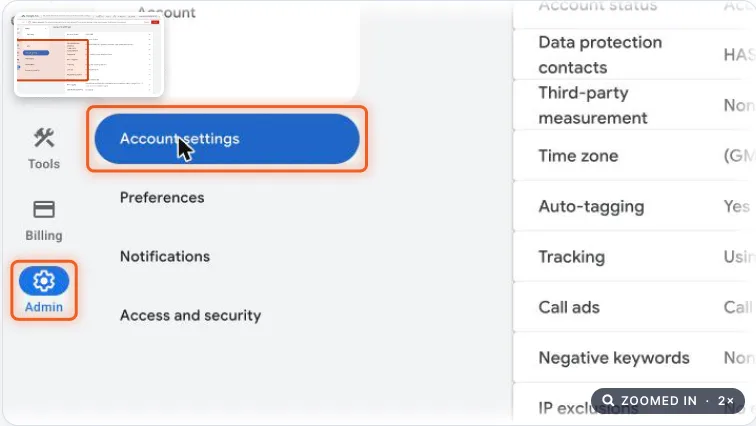
Google Ads Admin menu with Account settings highlighted. Real screenshot, Oct 2026. - 2
Click the “Auto-tagging” row to open it.
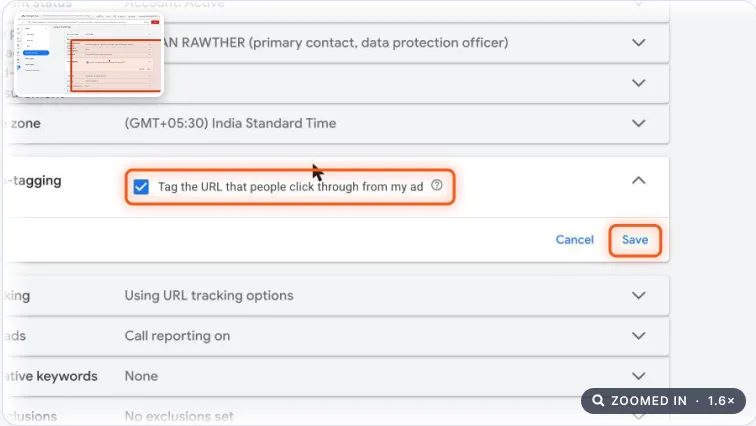
Auto-tagging row open with the Tag the URL checkbox and Save highlighted. Real screenshot, Oct 2026. - 3
Tick “Tag the URL that people click through from my ad” and click Save. If it already says “Yes”, you are done.
- 4
Link Google Ads to GA4: in GA4, open Admin → Product links → Google Ads links → Link, and pick this account. Without the link, auto-tagging data never reaches GA4.
Note
Once linked, Google Ads traffic shows up in Google Analytics within about 24 hours of your ads going live.
Agency playbook
Doing this for a paying client
What a senior checks before calling the job done. Numbers are starting rules; compare them with the account’s own history.
What good looks like
- The client’s business email is the account owner, and your MCC (My Client Center, Google’s manager account) link shows “Active” under Admin → Access and security → Managers.
- The account name follows your agency pattern, e.g. “Kochi Dental – IN – INR”, so anyone finds it in seconds among 50 MCC accounts.
- Zero live campaigns and zero spend until conversion tracking (SOP 025) is tested and shows a working status.
- At least two people on the client side hold Admin access, so one person leaving never locks the business out.
- Payment mode (automatic or manual prepay) is agreed with the client, and you know who tops up and who receives the GST (Goods and Services Tax) invoices.
Mistakes we see on real accounts
- Creating the account on the agency’s or a freelancer’s Gmail. When the client leaves, ownership fights freeze access and years of data.
- Paying with the agency card “just to start”. GST invoices go to the wrong business, and a payment problem can spread to other clients.
- Letting the guided setup finish. It can launch a Performance Max campaign that spends thousands of rupees before any tracking exists.
- Two freelancers each creating an account for the same business. Google can treat this as circumventing its systems and suspend both.
Agency checklist before you call it done
- Record the Customer ID (XXX-XXX-XXXX), owner email, MCC link date and payments profile name in the client’s tracking sheet.
- Screenshot Account settings showing time zone, currency and auto-tagging “Yes”. Save it to the client folder under Tracking → Google Ads.
- Give your team Standard access, not Admin. Keep Admin for the client owner and one agency lead.
- Make sure every user has 2-Step Verification on. Google Ads asks for it before sensitive admin changes.
- Open Billing → Advertiser verification, note the status and deadline, and tell the client which documents to keep ready.
- Get the client’s written OK (email or WhatsApp) on billing country, currency and time zone before payment details go in.
- Add a change-log entry: date, your name, “Account created under MCC, auto-tagging on, GA4 linked”.
Handover message to the client
Hi [Client name], your Google Ads account is ready. Customer ID: [XXX-XXX-XXXX]. You are the owner on [owner email], and we manage it through our manager account. Please watch your inbox for Google’s advertiser verification request. No ads will run until we confirm tracking with you.
Senior tip
Before creating anything, ask the client to search their inbox for “Google Ads”. An old account in good standing keeps its history and verification. Link it to your MCC instead of starting fresh.
Practice & check
Now do it for real
Reading is not doing. Open your own account and complete this task before you move on.
Practice task (5 min)
Open Google Ads → Admin → Account settings in your practice account and find the Auto-tagging row. Is it switched on?
Prove it
Two questions. Get both right and this SOP is done.
Common questions
Can I change my Google Ads currency or time zone later?
No. Both are fixed when the account is created. To use a different currency or time zone, create a new Google Ads account and move your campaigns.
Do I need a campaign before I can turn on auto-tagging?
No. Open Admin → Account settings → Auto-tagging and tick “Tag the URL that people click through from my ad”. Most new accounts have it on by default.
How long does it take to create a Google Ads account?
About 10–20 minutes, including business details and payment setup.
Done. That’s a real skill, not a certificate.
Next: SOP 063 — Give and Remove Access to a Google Ads Account →
Want to do this on real client budgets, with a mentor checking your work? That’s Level 2 at Unlearn. See the Digital Marketing track