The short answer
An XML sitemap is a file that lists the pages you want search engines to find. To submit it to Google, open Search Console → Indexing → Sitemaps, type your sitemap address (for example sitemap_index.xml for Yoast or Rank Math, sitemap.xml for Shopify) into “Add a new sitemap” and click Submit. Check the status says Success and the number of discovered pages looks right.
Before you start
By the end of this SOP
Your sitemap shows Success in Search Console with a sensible page count.
- Time
- 5–10 minutes
- You’ll need
- A verified Search Console property (SOP 206).
- Who does this
- The person responsible for SEO or the website.
About this SOP: why it matters, where and when
Why it matters: It helps Google find every important page, especially on new or large sites.
Where: In your website (to find the sitemap) and Search Console.
When: Once after setup, and again if you change SEO plugin or site platform.
Stage 1
Find your sitemap URL
- 1
Find the address for your platform:
- Yoast SEO or Rank Math: /sitemap_index.xml
- All in One SEO: /sitemap.xml
- SEOPress: /sitemaps.xml
- WordPress with no SEO plugin: /wp-sitemap.xml
- Shopify, Wix and Squarespace: /sitemap.xml
- 2
Open it in your browser, e.g. https://www.example.com/sitemap_index.xml. You should see a list of links, not an error.
Watch out
Use only one SEO plugin’s sitemap. Two plugins making sitemaps confuses Google.
Stage 2
Submit it
- 1
In Search Console, open Indexing → Sitemaps. Type the sitemap address in “Add a new sitemap” and click Submit.
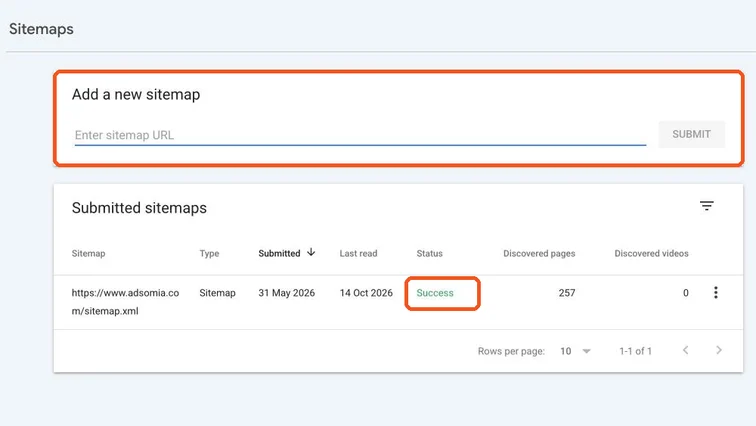
Search Console Sitemaps page with the Add a new sitemap box and a sitemap with Success status highlighted. Real screenshot, Oct 2026. - 2
Status should say Success. “Couldn’t fetch” usually means a typo, a blocked URL, or the site was down; open the sitemap in a browser to check.
- 3
Compare “Discovered pages” with the number of real pages on the site. A huge mismatch means junk pages (tags, attachments) are in the sitemap, or pages are missing.
Tip
You don’t need to resubmit after every new post. Google re-reads the sitemap regularly; check “Last read” to confirm.
Practice & check
Now do it for real
Reading is not doing. Open your own account and complete this task before you move on.
Practice task (5 min)
Find the sitemap of a WordPress site and a Shopify store, open both, and note how many URLs each lists.
Prove it
Two questions. Get both right and this SOP is done.
Common questions
Does submitting a sitemap guarantee indexing?
No. It helps Google discover pages, but Google still decides which pages to index based on quality and duplication.
Where is the sitemap on a Shopify store?
At /sitemap.xml on your main domain. Shopify creates it automatically.
Done. That’s a real skill, not a certificate.
Next: SOP 208 — Check if a Page Is Indexed on Google (URL Inspection) →
Want to do this on real client budgets, with a mentor checking your work? That’s Level 2 at Unlearn. See the Digital Marketing track