The short answer
To set up Google Search Console, go to search.google.com/search-console, click Add property → Add a website, and choose Domain (covers every subdomain and http/https, verified with a DNS TXT record) or URL prefix (one exact address, verified with an HTML tag, file, Google Analytics or Tag Manager). Verify, wait a day or two for data, then link it to GA4.
Before you start
By the end of this SOP
A verified Search Console property collecting data, linked to GA4.
- Time
- 15–30 minutes
- You’ll need
- A Google account, and access to the domain’s DNS (for a Domain property) or the website admin (for URL prefix).
- Who does this
- The person responsible for SEO or the website.
About this SOP: why it matters, where and when
Why it matters: Without it you can’t see real Google search data, indexing problems or penalties.
Where: In Google Search Console, your domain registrar (DNS) or WordPress, and GA4.
When: Once per website, on day one.
Stage 1
Add the property
- 1
Go to search.google.com/search-console, open the property menu (top left) and click “Add property” → “Add a website”.
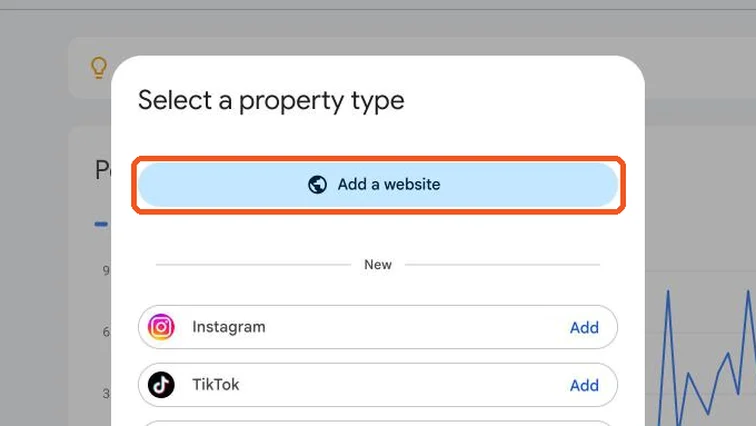
Search Console Select a property type window with Add a website highlighted, plus new social channel options. Real screenshot, Oct 2026. - 2
Choose the property type:
- Domain (recommended): covers www and non-www, http and https, and all subdomains. Needs a DNS record.
- URL prefix: only the exact address you type, e.g. https://www.example.com. Easier if you can’t access DNS.
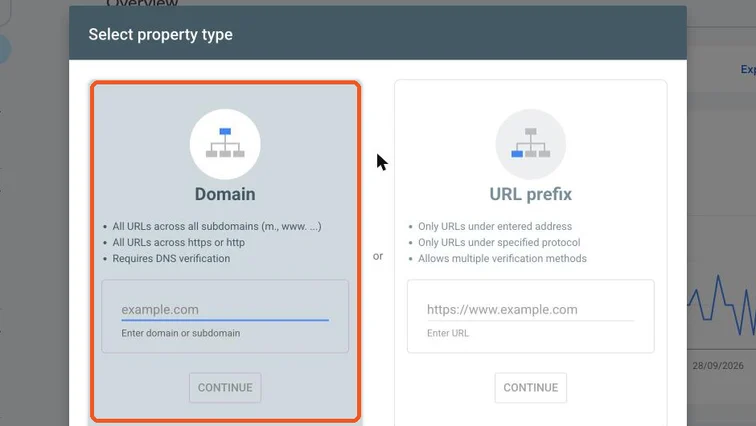
Select property type window comparing Domain and URL prefix, with Domain highlighted. Real screenshot, Oct 2026.
Stage 2
Verify ownership
- 1
Domain property: copy the TXT record Google shows, add it in your domain registrar’s DNS settings (GoDaddy, Hostinger, Cloudflare…), then click Verify.
Note
DNS changes can take from a few minutes to a day. If Verify fails, wait and try again. Don’t delete the record later, or verification is lost.
- 2
URL prefix property, pick the easiest method:
- HTML tag: paste the code into your SEO plugin’s webmaster tools field (Yoast, Rank Math, All in One SEO and SEOPress all have one).
- Google Analytics or Google Tag Manager: works instantly if the site already has them and you use the same Google account.
- HTML file: upload it to the site’s root folder.
Stage 3
Check it’s working and link GA4
- 1
Wait a day or two. The Overview shows a Performance chart, plus Indexing, Experience and Enhancements reports in the left menu.
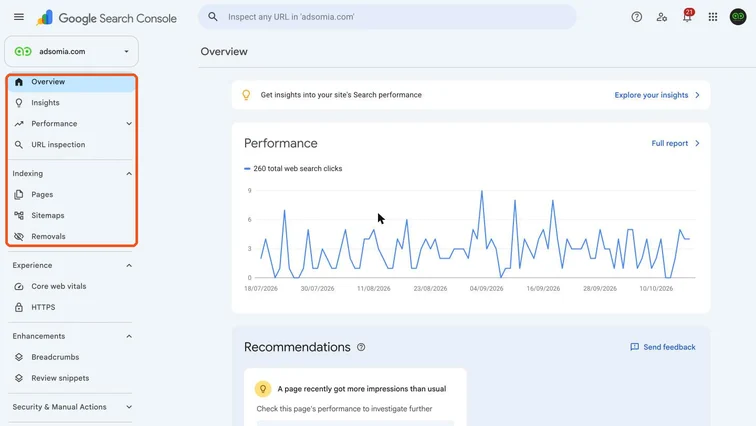
Search Console Overview with the left menu (Performance, URL inspection, Pages, Sitemaps) highlighted. Real screenshot, Oct 2026. - 2
Submit your sitemap next (SOP 207).
- 3
In GA4, open Admin → Product links → Search Console links → Link, and choose the property. Now GA4 can show search queries next to visits.
- 4
Add your team: Settings → Users and permissions. Give Full access to those who work on SEO, Restricted to viewers.
Practice & check
Now do it for real
Reading is not doing. Open your own account and complete this task before you move on.
Practice task (5 min)
Add a practice site (or your portfolio) to Search Console as a Domain property and verify it with DNS.
Prove it
Two questions. Get both right and this SOP is done.
Common questions
Is Google Search Console free?
Yes. Search Console is a free tool from Google for any website owner.
What is the difference between Search Console and Google Analytics?
Search Console shows how your site performs in Google Search before the click: queries, impressions, rankings and indexing. GA4 shows what visitors do after they arrive.
How long until Search Console shows data?
Usually a day or two after verification. It then keeps up to 16 months of history.
Done. That’s a real skill, not a certificate.
Next: SOP 207 — Find Your XML Sitemap and Submit It to Google Search Console →
Want to do this on real client budgets, with a mentor checking your work? That’s Level 2 at Unlearn. See the Digital Marketing track